
What Pesto does
Pesto keeps an encrypted history of what you copy and pastes it back with Command Shift V. Everything on this page is in the app today. The guide has every detail.
Press Command Shift V, pick a clip, press Return
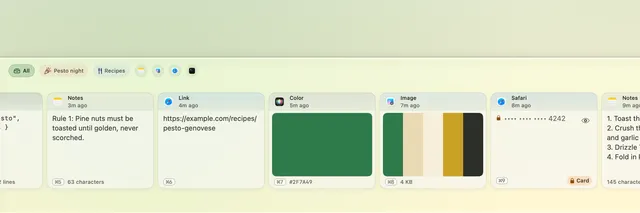
- Your recent clips slide up on the shelf: text, code, links, pictures, files and colors. Return pastes, and Command 1 to Command 9 paste the first nine. With the mouse, a click picks a clip and a double click pastes it. Pasting into other apps needs the Accessibility permission.
- In a text field, Command Shift V lists your last five clips at the cursor. Paste the previous copy with a shortcut you record in Settings, under Shortcuts.
- To paste without formatting, right-click a clip or press Command K, then choose Paste As…, Plain Text. Paste As… has 26 options, Plain Text among them, and each clip offers the ones that fit it. They include changing case, JSON, Base64, hashes and more.
- Shift Return pastes plain text directly. Command C copies a clip; with several text clips selected, it copies them joined by a blank line, as Paste All pastes them. Command Y opens Quick Look, and Command W closes the shelf.
- Page Up and Page Down, or Option with the left or right arrow, move a screenful of clips. Return with two or more clips selected starts Paste One by One. Command E shows or hides a covered clip. In search, Tab walks the filters, and the arrow keys, Home and End move the text cursor.
- Paste several clips at once with Paste All (Command P), or one by one with Paste One by One (Shift Command P). Undo (Command Z) takes back the last delete or change.
- Save Image, or Command S on a picture, writes it without asking to Downloads, or to the folder you set in Settings, under General. It never replaces a file already there. A covered or hidden picture is not saved. A color clip has Copy As: HEX, RGB, HSL, a SwiftUI Color or an NSColor.
- A text clip shows its paragraphs, with a slim dotted gap for a blank line. When the whole clip is shown, its footer counts the characters and lines, such as 64 characters · 8 lines. A clip shows 4, 5 or 6 lines at the Small, Medium and Large sizes.
- Right-click a clip for what applies to it: call a number, write an email or open a link. Open an address or coordinates in Maps. Add a date to Calendar, or track a UPS, USPS, FedEx or DHL parcel. Add to Calendar hands Calendar a file, so Pesto needs no calendar permission.
- Most tracking numbers are checked by their check digit, so a typo is not offered. A 22-digit FedEx number is matched by its prefix alone. A FedEx, DHL or 20-digit USPS number needs the carrier’s name in the text.
Find a clip by typing a few words
- Search matches the first 500 characters of each clip and the text inside pictures. Once a search is longer than 8 characters, it matches meaning too. It runs on your Mac.
- The Format chips, Markdown and JSON, put
@markdownor@jsonin the search field. JSON is found only when the whole copy is one object or array. The Sensitive chip finds every hidden secret, such as cards, keys and passwords, as well as clips you marked by hand. - Ask turns a sentence such as “the invoice link from last week” into filters. It uses Apple Intelligence on your Mac, or built-in rules.
Collections, pins and snippets for what you reuse
- Group clips by hand, or let a smart collection fill itself from rules joined with AND or OR. Suggested collections appear when you open the Collections pane in Settings.
- Pin the clips you reuse; up to nine get Control 1 to Control 9. The floating window is a small copy of the shelf that floats above other windows. It opens on the display of the app you are working in. Use the window button in the shelf’s toolbar, the menu bar or a shortcut you record.
- Snippets fill in placeholders when you paste, and after a plain-text paste the caret lands at
{{cursor}}. The guide has the details. - Snippets that ask: a snippet can ask for a name, a choice or an optional paragraph when you paste it. The panel opens over the app you are in. Each field starts with what you typed last time, kept on your Mac with the snippet. The guide has the details.
- Give a clip an expiry: burn after paste, 1 hour, 24 hours or 1 week.
| Placeholder | What it pastes | Example |
|---|---|---|
{{date}} | Today’s date, in your Mac’s short format | 5/15/2026 |
{{time}} | The current time | 2:30 PM |
{{datetime}} | The date and the time | 5/15/2026 2:30 PM |
{{isodate}} | The date as year-month-day | 2026-05-15 |
{{weekday}} | The day of the week | Friday |
{{date+Nd}} | The date N days from now, as in {{date+3d}} | 5/18/2026 |
{{date-Nd}} | The date N days ago, as in {{date-1d}} | 5/14/2026 |
{{clipboard}} | The text on the clipboard when you paste | Dana |
{{uuid}} | A new random ID each time | 3f2b8c1e-9a47-4d0e-b6a5-1c2d3e4f5a6b |
{{app}} | The name of the app you paste into | Slack |
{{cursor}} | Nothing: the caret lands here after a plain-text paste | none |
Encrypted on your Mac, with secrets masked
- Clips, previews, titles, notes, tags and search data are encrypted with AES-256-GCM. The key is in your login Keychain, on this Mac. A secret is text that looks like a card number, key, token or password line. Secrets are masked and left out of search by meaning.
- Pesto flags links and pictures it judges adult, on your Mac, and you can mark any clip as sensitive. The content filter blurs a flagged clip, hides it or shows it, as you choose. A blurred clip pastes like any other, with Return, Command 1 to Command 9 or a double click, without showing it. A hidden clip leaves the shelf and appears only in a search, under Hidden. Picture screening needs macOS 27, runs on your Mac and is best effort, so it can miss things.
- Before you share your screen, choose Hide Clip Contents to blur your clips. It is in the menu bar, and also works as a Shortcuts action or a Focus filter. A separate setting, off by default, blurs them on its own when it notices a share or a sharing app. It covers a shared browser window as well as a shared screen. It cannot notice Safari or a single shared tab, so do not rely on it.
- Copies from your other devices are left out of your history. To keep them, turn on Other devices in Settings, under Privacy.
- Pesto’s actions appear in Spotlight. Its clips do not.
One encrypted file, made when you choose
Back up to one encrypted file, protected by a passphrase or a recovery key. Clips holding secrets are left out unless you include them, and clips over 10 MB are always left out.
Automatic backup is off by default and set per Mac. Switched on, it writes one encrypted file to a folder you choose, such as one in iCloud Drive. Restoring on another Mac is a step you take by hand.
If Pesto cannot unlock your history, the alert offers Restore from Backup. You choose a backup, enter its passphrase or recovery key and see what it holds. Only the Restore button replaces the unreadable history; Cancel changes nothing.
Optional AI that stays on your Mac
Summarize, Translate and Extract work on text, with Apple Intelligence on your Mac. They need macOS 26 or later and a Mac with Apple Intelligence. Describe Image needs macOS 27.
Where a setting or a download is the fix, the menu says so. On a Mac that cannot run a feature, its actions are hidden, and everything else works. One switch in Settings turns all on-device AI off.
Drive Pesto from Shortcuts, links and AppleScript
Pesto has five App Shortcuts: Open, Search, Copy from Pesto, Copy Text to Pesto and Hide Clip Contents. It answers pesto:// links and has an AppleScript dictionary. On macOS 26 and later, you can add an Open Pesto control to Control Center.
Four themes, four icons, light and dark
Choose from four themes: Basil, Parmesan, Pine nut and Mortar. Each sets an accent and an app icon named after it, shown in the Dock and the app switcher while a Pesto window is open. Parmesan, Pine nut and Mortar also tint the shelf. Dark mode can have a second theme.
In Settings, under Appearance, the shelf rests on the Dock or hangs from the menu bar under the notch.
Pesto uses Liquid Glass on macOS 26 and later, and a system material on macOS 15.
Pick a theme to see this page in it. Pesto has the same four in Settings.




Bring your history over from Paste
Pesto imports your clips from Paste. In Settings, choose Data, then Another app’s library, then Import, then From Paste. It reads a copy of your Paste library, read-only, and encrypts every clip on your Mac.
After setup, Pesto also offers once to bring over a history from another clipboard manager on your Mac. With one found, the shelf asks, “You have Maccy. Bring your history into Pesto?” With several, it names them. Import… opens that app’s import, or Choose… opens Settings, Data, Found on this Mac, where each has its own Import button.
Each import asks for Touch ID and a file of its own, so nothing is merged blind. It works with Paste, Maccy, Alfred, CleanClip, PasteNow, CopyClip, PastePal, Pastebot, Clipy, Unclutter and Flycut.
For any other app, choose Data, then Another app’s library, then Import, then Other File. It reads a CSV, JSON or text file that almost any manager can export. Pick the text column, see the usual preview, then import. Text only; secrets are masked.
Raycast snippets come in from the JSON file Raycast exports, and the placeholders {clipboard} and {uuid} convert too. Raycast and TextExpander fill-ins become snippets that ask.
Pesto is free: every feature, no account and no fees.
Moving from Maccy or Alfred, in the guide, explains them.