Getting started
Install
- Download Pesto from copypesto.net/download, and open
Pesto-<version>.dmgfrom your Downloads folder. - The window shows Pesto, a dotted arrow ending in a basil leaf, and your Applications folder. Drag Pesto onto Applications, then open it from there.
- If macOS asks whether to open Pesto, choose Open.
Pesto lives in the menu bar; it shows in the Dock only while Settings, About or the setup window is open.
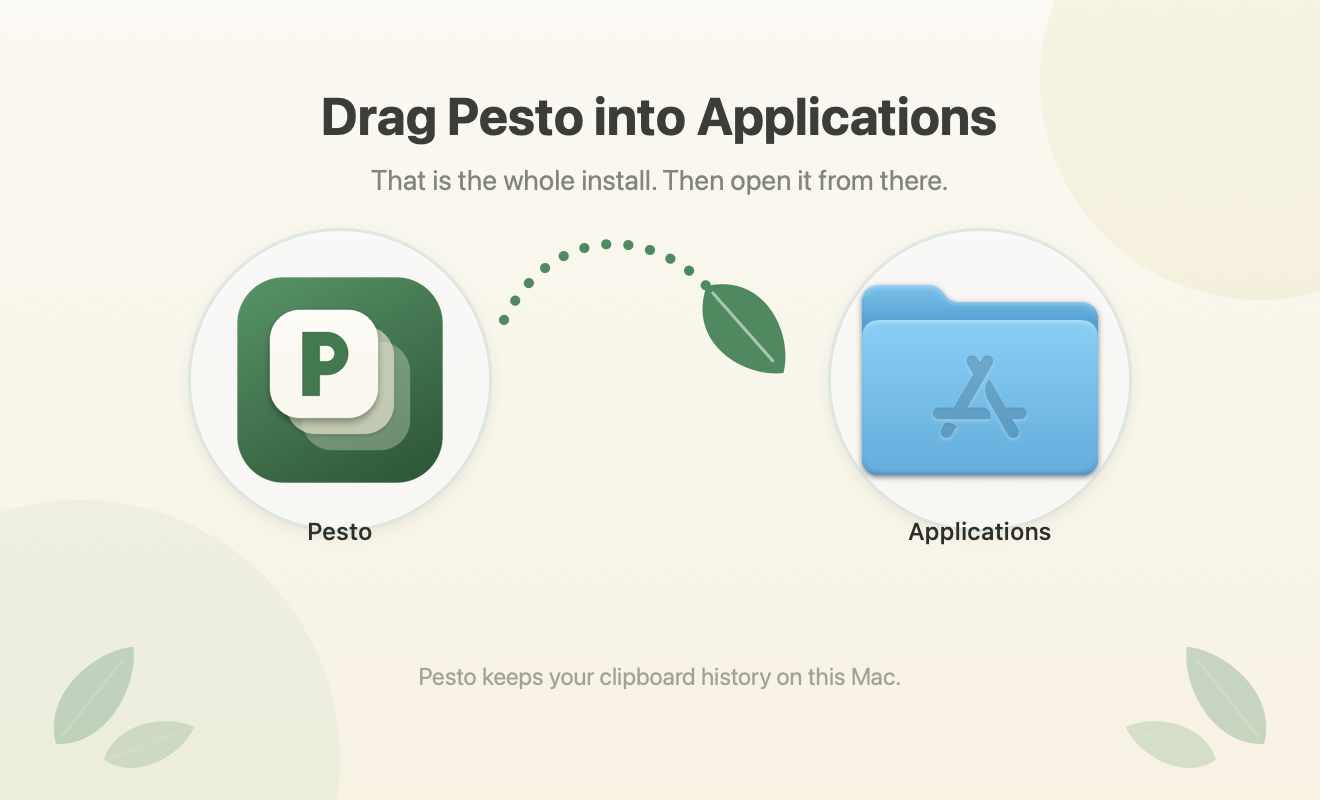
If you open Pesto straight from the disk image or the Downloads folder instead, it offers to move itself to Applications, open the copy and eject the disk image. Launch Pesto at login, updates and the paste permission all need that one installed copy. Choose Don’t ask again to keep it where it is.
First launch
A short setup window appears with three steps. It takes about a minute:
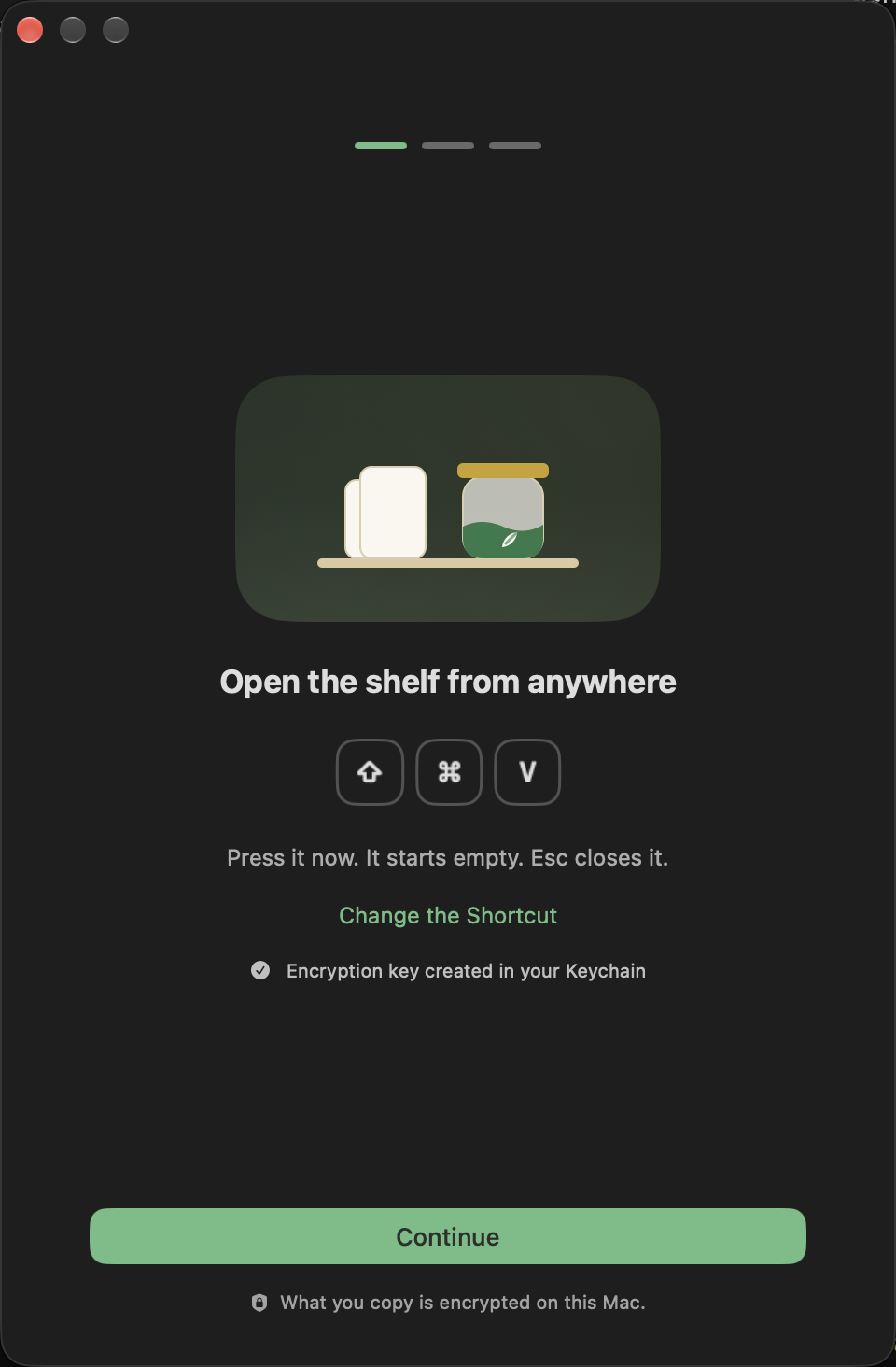
- Open the shelf. The window shows your shortcut as keys (Command Shift V unless you changed it) and invites you to press it to see the shelf, which starts empty; Change the Shortcut opens Settings. Some apps use Command Shift V for “paste without formatting”, so change it there if that is you. Continue also creates the encryption key: a random key stored in your login Keychain, with which everything you copy is encrypted before it is written to disk. macOS may ask you to allow Keychain access: choose Always Allow, which lets Pesto itself, and only Pesto, read the key without asking each time.
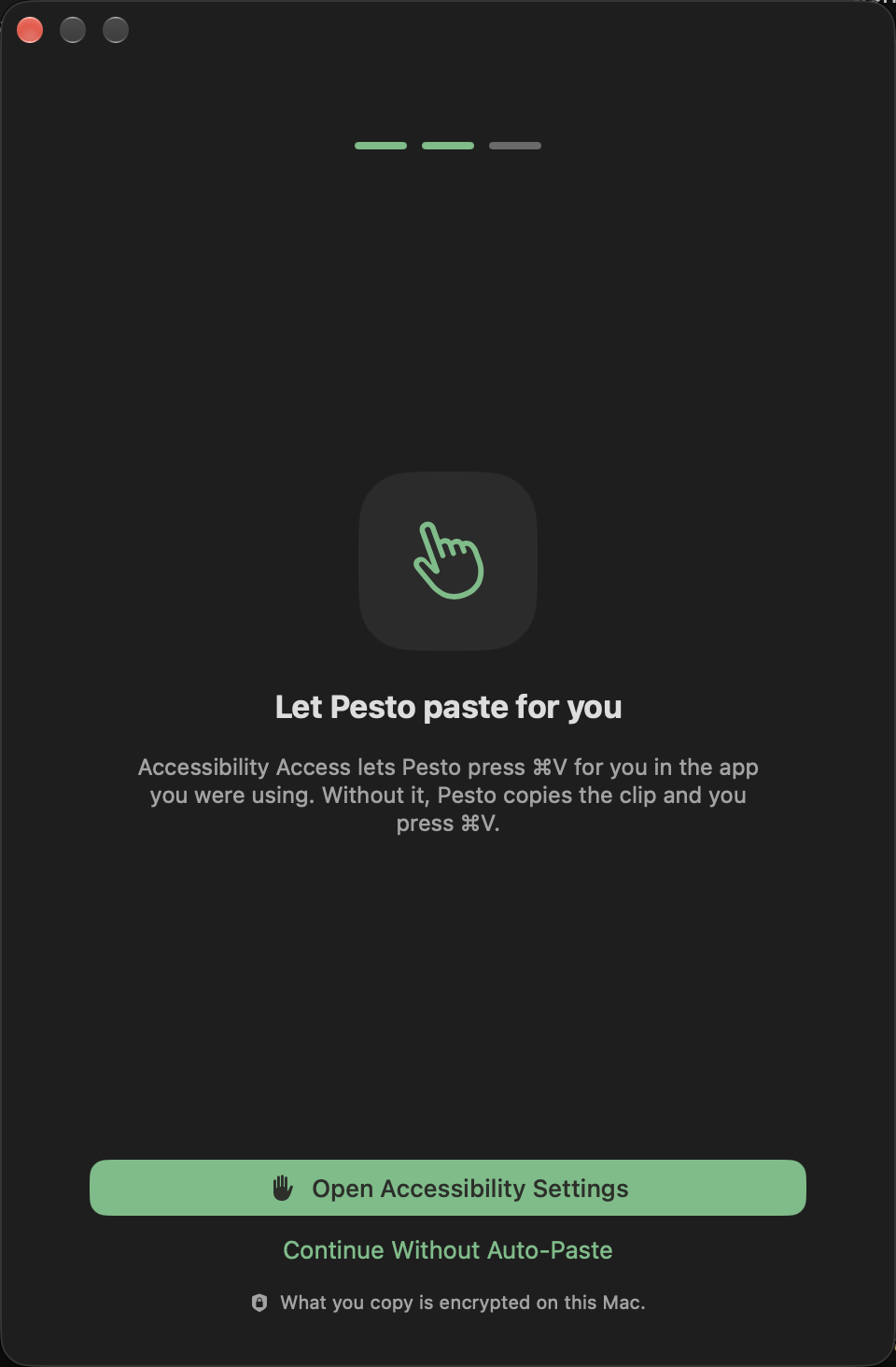
- Allow pasting. Pesto asks for the Accessibility permission (if it is already on, the step says so and you continue). It is used to press Command V for you in the app you were using, and to notice a double Command C for the optional append shortcut. Without it Pesto still keeps your history, but pasting from the shelf copies the clip and shows a small “Press Command V to paste” notice, and the double-Command C setting stays off. Choose Continue Without Auto-Paste to skip it; you can grant it later in System Settings → Privacy & Security → Accessibility.
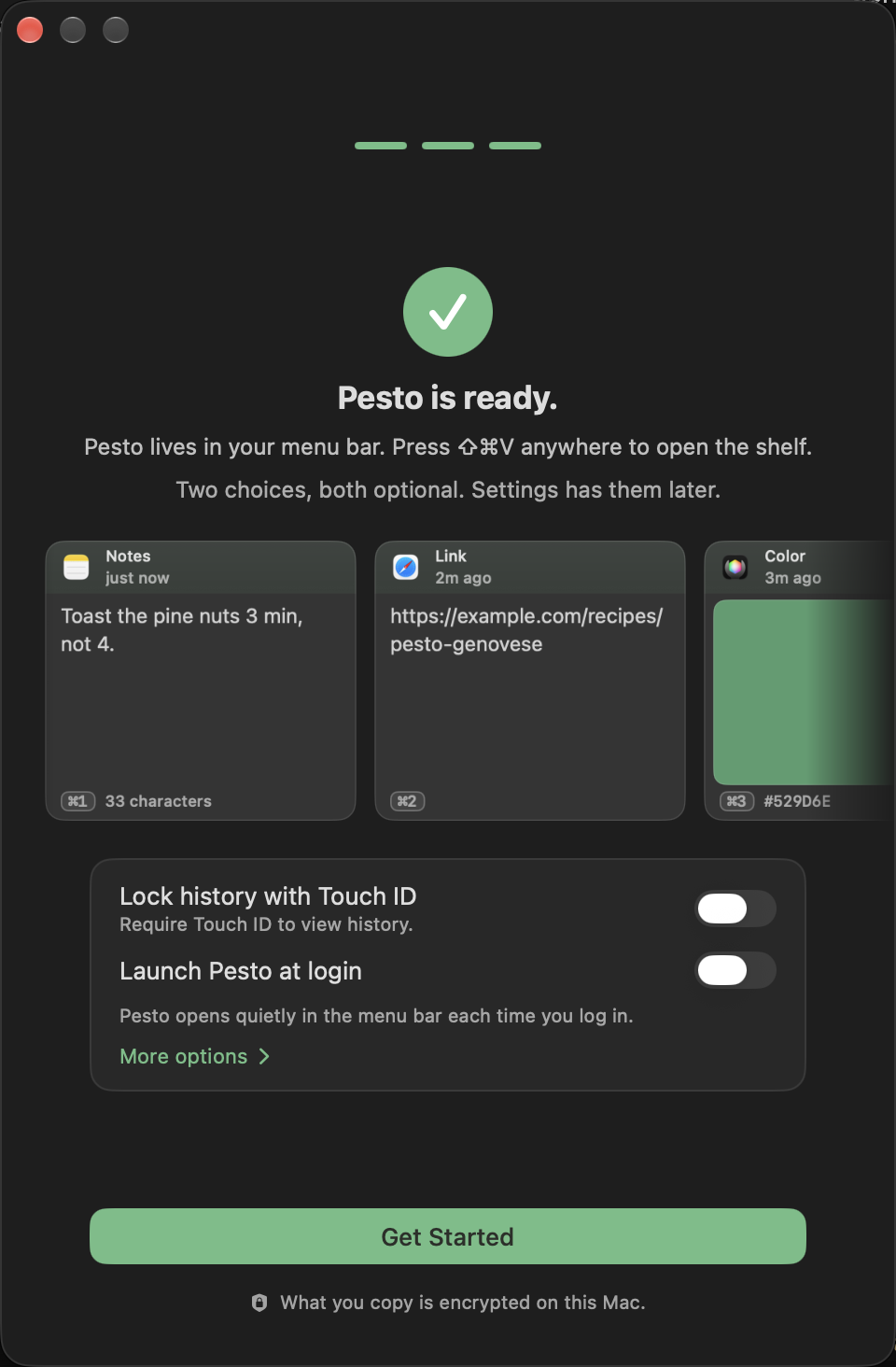
- Make it yours. Both choices are optional: require Touch ID to view your history (it appears only on a Mac that can ask), and Launch Pesto at login. Pesto lives in the menu bar, so without it Pesto only remembers what you copy while it is running. More options adds the menu bar icon and copies from other devices. Then choose Get Started.
The setup works from the keyboard alone: Return or right arrow goes on where Continue is available, left arrow (or Back) goes back a page, and Esc closes the window. Closing it early is fine; the setup comes back at the next launch until you finish it.
Sensitive pictures and links are blurred by default; you can hide or show them instead in Settings → Privacy.
Your first paste
- Copy something (Command C) in any app. Do it a few times.
- Press Command Shift V. The shelf slides up from the bottom of the screen with your recent copies.
- Use the arrow keys (or the mouse) to pick a clip and press Return, or double-click it. Pesto pastes it into the app you were in.
Press Esc to close the shelf without pasting.
The shortcut to remember
| Shortcut | What it does |
|---|---|
| Command Shift V | Open the shelf. Arrow keys move, Return pastes. (Settings → General can open a small mouse-only menu at the cursor instead.) |
You can change it in Settings → Shortcuts, where you can also record shortcuts for pasting the previous copy and for the floating window. To paste without formatting, choose Paste As → Plain Text in a clip’s menu.
Updates
Pesto checks for updates on its own and asks before installing. You can also choose Check for Updates… from the menu bar icon.
This guide matches Pesto as of October 29, 2026. App commit 70204d2.